
Guide
Manage instances
Add an instance
Section titled “Add an instance”Use an app password for each Pi-hole instance. Keep it on the server; do not include it in the URL or in screenshots. FilterHelm uses the Pi-hole FTL 6.x REST API.
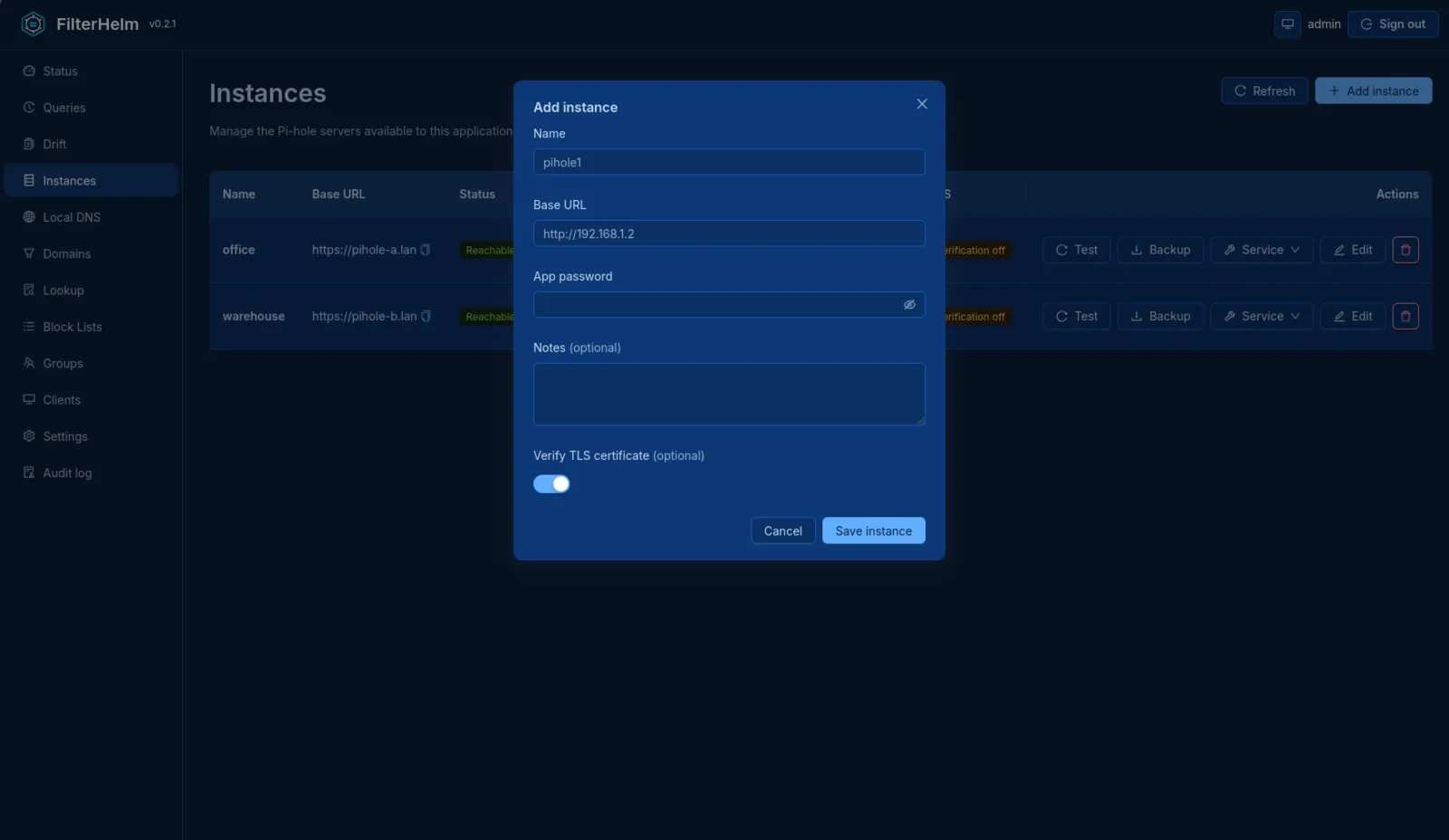
Open Instances and add an instance. Enter a display name, the base URL, and the app password. Use a bare HTTP or HTTPS origin for the base URL. Leave out paths, query strings, fragments, and embedded credentials.
Test the connection before saving. A failed test means you should check the origin, network access, and app password before continuing. After saving, check the instance’s reachability and health. Repeat for each instance you want to compare.
Read more about instance management.
Allow a public destination
Section titled “Allow a public destination”By default, instance hostnames must resolve only to private addresses. Loopback, link-local, and other denied address ranges cannot be used as instance destinations. FilterHelm does not follow redirects.
If your instance needs a public destination, configure FILTERHELM_PUBLIC_ALLOWLIST on the server. Entries can be exact hostnames, addresses, or CIDRs. Hostnames match exactly and do not cover subdomains.
FILTERHELM_PUBLIC_ALLOWLIST=pihole.example.com,198.51.100.1,2001:db8:ab09::3574The outbound allowlist controls Pi-hole destinations. FILTERHELM_TRUSTED_HOSTS controls incoming requests to FilterHelm and serves a different purpose.
Read more about the outbound instance policy.
Store credentials
Section titled “Store credentials”FilterHelm keeps Pi-hole passwords on the server. It uses the OS keyring when available. In containers and on headless hosts, passwords go into secrets.yml in the data directory. File permissions protect this file; its contents are not encrypted. Protect the directory and its backups.
Read more about credential storage.
Remove an instance
Section titled “Remove an instance”Remove the instance from Instances when you no longer want FilterHelm to manage it. This forgets the instance locally. It does not change the Pi-hole itself.